

DropBox is one of the most popular cloud storage services available, and it has now teamed up with the most popular social networking website, Facebook, to bring its users one step closer to social integration. We had been hearing a lot about DropBox partnering with Facebook, but this has only now been implemented. As a result, DropBox and Facebook users will no longer have to upload files from their PC to share on their Facebook Groups. They can simply select the file(s) from their DropBox account, which will then be added to the Facebook Group. Easy, no? Let's see how this works out.
Security concerns
When talking about the biggest social network on the planet, privacy and security are bound to come up at some point. And here we're talking about sharing files from your personal DropBox account. So is it safe? Well, you can count on it.
First of all, when you integrate your Facebook account with DropBox, DropBox only gets access equivalent to what a normal app would get. It can only access your Basic info, and not your account information except for email address, which is used to identify people. Facebook doesn't get away with much of your DropBox information either. All it gets is the name of the file, the size, and the download link.

Users on your Facebook group, be it private or public, can only download your file. They can't add or edit anything. Your files are secured with a token as well. And even if someone guesses it, they still have to know the folder name it it located in, and its exact name. So chances of privacy violations are pretty slim.
Adding DropBox files to Facebook Group
It's really easy to add files from your DropBox account to a Facebook Group. You don't need to be a Group administrator or something for this. You'll just need to be a part of a Facebook Group, because that's where this feature is available. Here's how to use it.

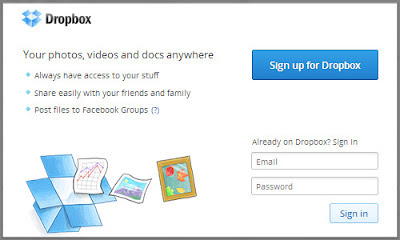


- Go to a Facebook group you want to add files to, and start writing a post on that group. You'll see an option Add File. There, you'll see an option From Your DropBox.
- Click on Choose File, and Facebook will ask your permission to allow DropBox. Click Allow.
- You should then see a DropBox login windows with a Facebook Window. Log into your DropBox account to access your files.
- Select a file you want, and simply double-click on it to add it to the group.
- Once done, you will see your file displayed in a nice manner along with your post :)
When people click on this file, they will get a download link. They do not need to have a DropBox account in order to be able to download the file. Also, people from outside the group can download the file as long as they have the link to the file.
This new integration feature is really convenient, especially to people who work collaboratively and are active social media users. Share this post with others to know them about this tricks. And feel free to ask any questions in the meantime. Cheers :)


If you don't want to get yourself into Serious Technical Trouble while editing your Blog Template then just sit back and relax and let us do the Job for you at a fairly reasonable cost. Submit your order details by Clicking Here »
