

Gmail is a very powerful service that lets you do more than just sending and receiving emails. It has been around for quite some time now, and has always tried to stay ahead of its competitors by offering more storage and a faster system along with other cool features that help it stay ahead of the game. There are apps that collaborate with Gmail to provide additional, powerful functionality. Now, using such methods, you can schedule your emails, track them, and more. Scheduling emails to be sent later is a particularly useful feature which will help you become organized and efficient, and increase your productivity. You can do this for free using either of the two apps; Boomerang and RightInbox.
Why schedule your emails?
There can be many uses for scheduling emails. Firstly, it looks a lot more professional if all your emails arrive at one time. This makes you reliable and dependable, and your email contacts will learn to wait for your emails at particular times of the day, hence saving them the time spent on anxiously waiting for your emails.
Secondly, it's one the strategies in email marketing. Emails are more effective if sent in accordance with the receivers' time-zone. These days, email is so popular that a lot of people get drowned by excessive emails everyday, and hence have to skim over and delete most. So to make your emails appear somewhere near the top of their inbox, you need to determine what time they log on (such as after 9 A.M. when they arrive at their office), and send your mails accordingly.

Scheduling emails in Gmail
Gmail, like other mail services, doesn't give you a scheduling option by default. You need to install a third-party add-on to make scheduling work. Usually, these are browser add-ons (no, they don't require your browser or PC to be open at the time of sending emails). The most popular such tools are Boomerang, and RightInbox. Both have free and paid versions.
Boomerang also has some additional bonus features, such as email tracking and email reminders which will never let you forget a conversation again.

RightInbox also gives you reminder and tracking option. It will track your sent emails for when someone has opened them. RightInbox is free as well, but for limited use. It also allows 10 scheduled emails per month. You will need to get a subscription for full use.
Related Tip:
This is a really great feature, and I am sure a lot of you need this. It is especially useful for professionals who need to send out emails frequently. This trick will let them become more efficient at their task
Scheduling with Boomerang
- Visit the Boomerang site and download the extension
- Log into your Gmail account. If you're already logged in, the app will automatically be installed
- Open your Gmail account, and click on Compose New
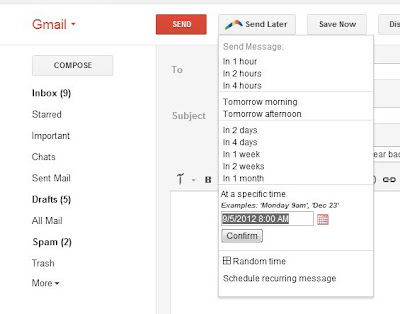
- Now, you should see a Send later option next to your Send button. Click on it, and you'll see the scheduling options for your email
Note: By installing this add-on, you automatically grant third-party permissions to Boomerang.
The scheduling options are fairly easy to understand. You can schedule ahead for a month, and schedule for any time. The 'Tomorrow morning' option actually means 9:30 A.M, which is when most office-going people will read their mails.
Boomerang is free for initial use, and is limited to 10 scheduled emails per month. You can buy it if you want to schedule more emails.
Boomerang also has some additional bonus features, such as email tracking and email reminders which will never let you forget a conversation again.
Scheduling with RightInbox
- Download the RightInbox add-on for Firefox or Chrome
- Grant access permissions, and you're ready to start scheduling
- You will see a Send Later button alongside the Send button. It has all the scheduling options you need, just like with Boomerang

Related Tip:
This is a really great feature, and I am sure a lot of you need this. It is especially useful for professionals who need to send out emails frequently. This trick will let them become more efficient at their task


If you don't want to get yourself into Serious Technical Trouble while editing your Blog Template then just sit back and relax and let us do the Job for you at a fairly reasonable cost. Submit your order details by Clicking Here »
