

Have a Look at each one of them. Details of adding the blockquote to your blogs and websites are given in the implementation and customization section.
Blockquote With a Fancy Border and Owl Image
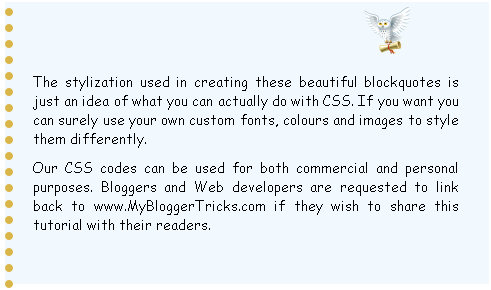
Blockquote Code:
blockquote {
margin : 0 20px;
padding: 60px 30px 40px 20px;
background : #F1F8FE url(https://blogger.googleusercontent.com/img/b/R29vZ2xl/AVvXsEh_xDhACGvZIpC6df9jBaqyHrCljILF3uQLA_HWzpuT90wZlWO_T8OjI-Ycq9kPA8Soec5JbVray7Yxmw6EL5bopQgDOu1R7PTXLYDuqoInmUVQB-q_4vsRTwjxT_dnYzsTA3tfP0O1e9A/s400/owl.png) no-repeat 350px 5px;
font: normal .9em "comic sans ms", Courier,"Times New Roman", Times, serif;
color : #000;
border-left: 8px dotted #DAB547;}
blockquote p {
margin: 0;
padding-top:10px;
}
Blockquote With a Purple Corner Label and Border At Bottom

Blockquote Code:
.post blockquote {
margin : 0 20px;
padding: 70px 20px 20px 40px;
background : #E4EAFE url(https://blogger.googleusercontent.com/img/b/R29vZ2xl/AVvXsEilYhGpeVtrXsMmefoZAQFAik8PB0aAcGHUymiOSI0P2PVHTpcIaNa3u6eOijsYPjcMZBWSiXUYTn779LGGMm2pdxTIVpTSdF14Vcih4ZU2jub4TfGCZRMGISDzhjIzqFXnL2wQ3feACkk/s400/angular-purple.gif) no-repeat top left;
font: bold 1em Helvetica, verdana, Georgia, "Times New Roman", Times, serif;
color : #000;
border-bottom : 5px solid #435388;
}.post blockquote p {
margin: 0;
padding-top:10px;
}
Jigsaw Blockquote With An Image At Right Corner

Blockquote Code:
.post blockquote {
margin : 0 20px;
padding: 10px 20px 25px 20px;
background : #9FCFFF url(https://blogger.googleusercontent.com/img/b/R29vZ2xl/AVvXsEhr4xHXz-fmQmHyJ8fmQGyBPHYp6eCAPUy6JbZyJUS3FbCg6b0wFvV6WSgCSfPnDMCoweMoDvV4giPB4zmP0V3h3atgJ_MFlubW5DFjRM08bL-fWmSdOyke0uJBbkYpqcn4J6wGNz6dNV8/s400/block22.gif) no-repeat right bottom;
font: bold .9em "comic sans ms", arial, Helvetica,verdana, Georgia;
color : #484848;
border: 5px dashed #fff;
}.post blockquote p {
margin: 0;
padding-top:10px;
}
Blockquotes With Classic Left Borders

Blockquote Code:
.post blockquote {
background: #F3F3F1 url(https://blogger.googleusercontent.com/img/b/R29vZ2xl/AVvXsEjGPSXXvc8MVk180sYnGCGroaZVTMF_rYJhL9gEbv5rRFp0CQAsjw5Nqi4iESgXGrgJMqxlLwBcdYvUIgg1N8g15bMaAtnWFdD74r7nX1vUur3Iu3P1MX5OsGS71KqE53eBOHXLLW8d3Y4/s1600/comma-side-orange1.gif) ;
background-position:;
background-repeat:repeat-y;
margin: 0 20px;
padding: 20px 20px 10px 45px;
font-size: 0.9em;
font: italic 1.2em Georgia, "Times New Roman", Times, serif;
}
.post blockquote p {
margin: 0;
padding-top: 10px;
}

Blockquote Code:
blockquote {
background: #484B52 url(https://blogger.googleusercontent.com/img/b/R29vZ2xl/AVvXsEjJQPJKS4pQa1FwlubdwBZz__TXKcW17cSYnnb5G8hgBEfusFBv70_qKtYWQkBIYH8pom5F0IKplYzZoea76LAHHKGV8NbC26shX4MEx7IbvGG8Wi5JaT_JfHf9i6Cj-xI87JflKMqBaP0/s1600/green-black-side.gif) ;
background-position:;
background-repeat:repeat-y;
margin: 0 20px;
padding: 20px 20px 20px 50px;
color:#C7CACF;
font: normal 0.9em Helvetica, verdana, serif, Georgia, "Times New Roman";
}
.post blockquote p {
margin: 0;
padding-top: 10px;
}
Blockquote With A Brown Corner Label

Blockquote Code:
.post blockquote {
margin : 0 20px;
padding: 20px 60px 80px 20px;
background : #FEE4E3 url(https://blogger.googleusercontent.com/img/b/R29vZ2xl/AVvXsEirldYII_qMpfRaBLmfTqLCQW9HXgaaXlGExPRJc-l0o-aC-GNkUXGSVqh4piFojAINU-4rxurCoDg1QxfNTk5qekN5qlGXOIuXRgbcFsvBJZLcjCTGjbK4azuEO59HR0TShClg75g9Gb8/s400/angular-right.gif) no-repeat bottom right;
font: bold italic 1em Georgia, verdana, Helvetica, "Times New Roman", Times, serif;
color : #000;
border: 1px solid #DDD;
}.post blockquote p {
margin: 0;
padding-top:10px;
}
Blockquotes With Inverted Commas

.post blockquote {
font: 18px normal Tahoma, sans-serif;
padding-top: 10px;
margin: 5px;
background: url(https://blogger.googleusercontent.com/img/b/R29vZ2xl/AVvXsEime21FZC3ISy_VwNpH7fFc9mKvc7gR_LjK6Nm1um9121_TrmkQEhO-jZnkPTJy6sug1EYwlV8TYDCYXhBAw2w_RqTDHPspfK1ZtOWO3FTaeaTAvrZkQk404ZG2m73eWB7Nkw6UP-e5BAY/s400/comma-left.gif) no-repeat top left;
text-indent: 65px;
}
.post blockquote div {
display: block;
background: url(https://blogger.googleusercontent.com/img/b/R29vZ2xl/AVvXsEje5uQpgYs-icTKWERpQje1tNenOfGwcIXNdVDemtKN38bWW86ZFHrQkyM8WvI83c-f8LKu_Z-NjrhT70pFtle2w9ynE5bLKi3b7IpkEp3c3i5vN6rcrBubhi1Z0LuR62-KJlHP2q8kgCg/s400/comma-right.gif) no-repeat bottom right;
padding-bottom:10px;
}.post blockquote p {
margin: 0;
padding-top:10px;
}

Blockquote Code:
.post blockquote {
font: 18px normal Tahoma, sans-serif;
padding-top: 10px;
margin: 5px;
background: url(https://blogger.googleusercontent.com/img/b/R29vZ2xl/AVvXsEgL3Rwun2Go7WfktWsxiSeILTZbC7FS5GdaS3yMDBr0TzX0fdtxxiqZGYCYRJaAhojB0Oj0Yju7igPYnHXflHLmeUdYE3D6tKu17DkjsGIIYNRgMmZsewlfmOZp0MiO7-Wxh1SKR7hlJyY/s400/comma1-left.gif) no-repeat top left;
text-indent: 65px;
}
.post blockquote div {
display: block;
background: url(https://blogger.googleusercontent.com/img/b/R29vZ2xl/AVvXsEiVjpJn-t3jXl7w-kyUcSaFkkuwAABrJ8-6r6jyyFqeWSi9MmFDdoU3fiirjJIYbyTvkkxjxQKp5WW6dAdxmLFQVFnnzVqaSkGGDe33Hmkxkc0JsI7w-Bnwu6Qe5r6-jshEyGKwhqVAv78/s400/comma1-right.gif) no-repeat bottom right;
padding-bottom:10px;
}.post blockquote p {
margin: 0;
padding-top:10px;
}

Blockquote Code:
.post blockquote {
font:bold italic .9em "comic sans ms", Tahoma, sans-serif;
padding-top: 25px;
margin: 5px;
background: url(https://blogger.googleusercontent.com/img/b/R29vZ2xl/AVvXsEgoq2vpcyghtO8dCHia39csx-EYL9CCe3L90d7DR0o5w-5d9A8Qt1ZiT45anb41HWLD8qJii7F8LKmoH0PTlTrdWl9qB_5FmRjRYyEvgWS5Fxyj4hSfXp2U-SNtekU6hw0jevwmV5pxMRw/s400/left.gif) no-repeat top left;
text-indent: 65px;
color:#6299E4;
}
.post blockquote div {
display: block;
background: url(https://blogger.googleusercontent.com/img/b/R29vZ2xl/AVvXsEiMSDSk-W52fe24DUFdF2wFTjIqO41AXrRzQ2675UiiksGdjGw-r553Eu41iyLPykK8FkWJx3wb8AhxpzwSnYM4hIL_fTd5iIMFtDD_5BmvGoMJI1Zo0hgiKVYsCf9mu_nrE6wP73DWGes/s400/right.gif) no-repeat bottom right;
padding-bottom:30px;
}.post blockquote p {
margin: 0;
padding-top:10px;
}

.post blockquote {
font: italic 1em "comic sans ms", Tahoma, sans-serif;
padding-top: 10px;
margin: 5px;
background: url(https://blogger.googleusercontent.com/img/b/R29vZ2xl/AVvXsEgP-3072uDvy2bswwfLYaThZchYt9K9yEZ6fZKzjZrSxIqH-uwSKNrWwwe-n0uNOo2pKGQi8aDQ5yd4NjDVw6mDDkReyg8pH411BlMfGaxRuiPl1fj797ZejTiQePp0DEeh4m2lpMgTVG0/s400/comma2-left.gif) no-repeat top left;
text-indent: 65px;
}
.post blockquote div {
display: block;
background: url(https://blogger.googleusercontent.com/img/b/R29vZ2xl/AVvXsEhXCKtGo87ZNebkZeH0A9PAYskfNOA0uK90uBy1EUFOWF8wFYWzMNSF-7d22VoUmXIkHSsOhauxxkYRcL6mCbuBmMHb-l9fn9HQkCqNw2oUdAfhsZPyEPVJQaRJ-bh9MLZ1cNk7P9rJTxI/s400/comma2-right.gif) no-repeat bottom right;
padding-bottom:10px;
}.post blockquote p {
margin: 0;
padding-top:10px;
}
Blockquote With Well Aligned Image At Top
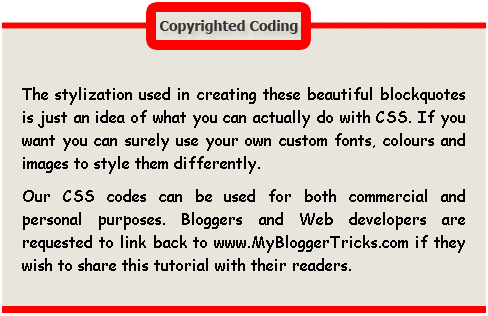
Blockquote Code:
.post blockquote {
margin : 0 20px;
padding: 70px 20px 20px 20px;
background : #E7E5DC url(https://blogger.googleusercontent.com/img/b/R29vZ2xl/AVvXsEhvEP1XiAhbdKIZFlwwdASDCU8YJ3mJyvCDp151N5vFdrldzZwui_mi24ZFw-GYkq3PqfCo1GkrTJHA44TRdNvGBZNBgnzpdeawqT5gejZbybjpZGQ74v7q3JGziPeiRu1lTO09T4Lnhto/s1600/block333.gif) no-repeat top;
font: normal 1em "comic sans ms",Helvetica, Courier,"Times New Roman", Times, serif;
color : #000000;
border-bottom : 7px solid #FF0000;
}.post blockquote p {
margin: 0;
padding-top:10px;
}
Blockquote With Canopy Style Image At Top and Bottom

Blockquote Code:
.post blockquote{
margin : 0 20px;
padding: 50px 30px 50px 30px;
background : #FFF url(https://blogger.googleusercontent.com/img/b/R29vZ2xl/AVvXsEhR_HBs8DEIB-vJEedbB3VKqme0-KVLqnqsCRITyZ7TnIeu4amdrBXuc1mW-OWuWpXZHWCR1yBaZA7tPPYlkvDu8fh2Lv0w_yo5V2_cVBdFeNErar3nt5Lx1F3VJweI58u1KOk4jMLAUyM/s1600/BLOCK1-TOP.gif) no-repeat top;
font: bold italic 1em Helvetica, verdana;
color : #000;
}.post blockquote div{
background : #FFF url(https://blogger.googleusercontent.com/img/b/R29vZ2xl/AVvXsEjfEz2mVzT5iFuN5z2kQ6Q4CZ2GkG-Gb4FufynBb5YeJglGibfuUoiJT-EfM0vUMNnN3EoQ2AwuwdKO009NlaRv2NlSLOtWAL2WzhWLxY2zVt8tteDKCA9S7ScfbQ0JAGjHOV-hKvZq-Mw/s1600/BLOCK1-BOTTOM.gif) no-repeat bottom;
padding-bottom: 50px;
}.post blockquote p {
margin: 0;
padding-top:10px;
}
Box Style Blockquote Surrounded By Borders
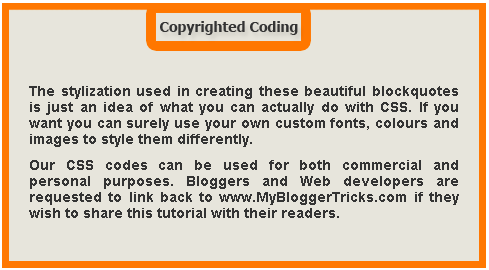
Blockquote Code:
.post blockquote {
margin : 0 20px;
padding: 70px 20px 30px 20px;
background : #E7E5DC url(https://blogger.googleusercontent.com/img/b/R29vZ2xl/AVvXsEgMqjn4uEkMkP1_0aJ5DsKNPMxgVxWUZexEghEYPzzn2OxlpTdVb12OwW7RClT1ryw214xfKyGxpR8feDxzUFq4yXVDjGmbuamvxx633sAv4lzNjAB4mFxCSzdGmrTXN_1nHVgDaDk_KFQ/s400/block3331.gif) no-repeat top;
font: bold .9em Helvetica, "comic sans ms",Courier,"Times New Roman", Times, serif;
color : #343434;
border-left : 7px solid #FF7802;
border-right : 7px solid #FF7802;
border-bottom : 7px solid #FF7802;
}
.post blockquote p {
margin: 0;
padding-top:10px;
}
The Monkey Man Blockquote!!!
Once you get an idea on how to use these blockquotes then you can create artistic and some funny blockquotes like the one below,

Blockquote Code:
.post blockquote{
margin : 0 35px;
padding: 80px 0px 0px 0px;
background : #E6F1FA url(https://blogger.googleusercontent.com/img/b/R29vZ2xl/AVvXsEhgWsYeSmCSfohUzkKI9BWsyN3oABoDkDPi6NwKD1jME79w8lcnCNxsGX178A6kHGcchsPl0qzOl16PYuNe4r4He931WTw6wGIIhPfGVAEEL7MLKb6HTtLR4qH9_7nxrFYGvuZQzG82bZw/s400/head2.gif) no-repeat top;
font: normal 1em "comic sans ms", Helvetica, verdana;
color : #666;
}.post blockquote div{
background : #E6F1FA url(https://blogger.googleusercontent.com/img/b/R29vZ2xl/AVvXsEhdfCUXwQpuhO2VN1lKO5X1xI1AbXH86mQcFcKz82-UFMlyXyv-M6h5wex_sdagV25KZ03Rm1xShGG3b78OM1mzdYNJraACtkFGk1Rg7yWCRQhhCFZ9GLKeSRkA7P3bz1SE0LQyFA7ssTI/s400/head-bottom3.gif) no-repeat bottom;
padding-bottom: 50px;
}.post blockquote p {
margin: 0;
padding: 20px;
}
Implementation and Customization:-
Implementaion:-
Now To add One of these amazing and unique blockquotes to your blogs, do the following,
- Go to Blogger > Layout > Edit HTML
- Backup your template
- Search for .post blockquote and delete it along with all its occurrences. In most templates the codes look like this,
.post-body blockquote { line-height:1.3em; }
If you couldn’t find such code then it is OK.
OR
.post blockquote{ bla bla bla} - Now search for ]]></b:skin> and just above ]]></b:skin> , paste the code for one of your favourite blockquotes. I am giving a sample code below
.post blockquote {
margin : 0 20px;
padding: 60px 30px 40px 20px;
background : #F1F8FE url(Paste Image Link here) no-repeat 350px 5px;
font: normal .9em "comic sans ms", Courier,"Times New Roman", Times, serif;
color : #000;
border: 8px dotted #DAB547;}
.post blockquote p {
margin: 0;
padding-top:10px;
}
Customization:-
Important areas to be customized are bolded. Where,
- padding: It refers to the distance of the text from blockquote borders. Which goes in this order –> Top Right Bottom Left
- background :- This includes Blockquote background color and image used in it. The six digit value is the background color and image link is inserted in place of bolded text in this part-> url(Paste Image Link here)
- font :- It includes font style, size and type respectively. Match the colours with the code above for reference.
- color :- This refers to text colour. You can use a different font colour using our color chart
- border :- This refers to border width, style and colour respectively.
- All other blockquotes can be customized in similar way.
5. After customizing finally save your template and preview it to see the interesting new change.
Note:- For Blockquotes with inverted commas, canopy style and the Monkey Man, there is a little more coding required. Read below
Guide:- For above mentioned blockquotes you need to add some extra tags inside blogger editor as explained below,
Now Whenever you have written a Quote inside the compose mode of Blogger Editor simply switch to the HTML mode and add two tags i.e <div> and </div> between the blockquote tags as demonstrated below,
<blockquote><div>Your Quote Will Be Here</div></blockquote>
Play With Each Blockquote Code!
To get more used to the codes above you need to play with some CSS using our HTML Editor.
Inside MBT HTML Editor paste the any of the blockquote codes above between <style> and </style> and just below </style> paste this code,
<blockquote>Write Anything Here As a Text</blockquote>
For example for the Owl Blockquote paste the codes in this pattern,
<style>
blockquote {
margin : 0 20px;
padding: 60px 30px 40px 20px;
background : #F1F8FE url(file:///c:/Documents%20and%20Settings/mustafa.MYBLOGGERTRICKS/Desktop/blockquote/owl-icon-48.png) no-repeat 350px 5px;
font: normal .9em "comic sans ms", Courier,"Times New Roman", Times, serif;
color : #000;
border-left: 8px dotted #DAB547;}
blockquote p {
margin: 0;
padding-top:10px;
}</style>
<blockquote>Write Anything Here As a Text</blockquote>
That’s All!
I have created all images with text “Copyrighted Coding” or “Scanned Copy” etc. If you want to write something else than use my images as reference size to create your own custom images.
I will publish two consecutive posts where I will share a blockquote with auto number list and a blockquote with a blinking bulb! Make sure you subscribe to be updated about latest CSS and HTML tricks related to Blogger.
Do not forget to tell us how useful or unique this post was for you.



If you don't want to get yourself into Serious Technical Trouble while editing your Blog Template then just sit back and relax and let us do the Job for you at a fairly reasonable cost. Submit your order details by Clicking Here »
 Mohammad
11/22/2009
CSS and HTMLTricks
Mohammad
11/22/2009
CSS and HTMLTricks

thats nice very informative
ReplyDeleteHI Mohammad, Awesome Blockquote And added to my blog
DeleteCoooooooooool....it's a great thing!
ReplyDeleteWell...I tried the inverted comas one but the right side image (coma) doesn't show-up, why?
@googy
ReplyDeleteIn the edit html mode of your blogger editor add the div tags as explained in the above post in these words
"Note:- For Blockquotes with inverted commas, canopy style and the Monkey Man, there is a little more coding required. Read below
Guide:- For above mentioned blockquotes you need to add some extra tags inside blogger editor as explained below,
Now Whenever you have written a Quote inside the compose mode of Blogger Editor simply switch to the HTML mode and add two tags i.e <div> and </div> between the blockquote tags as demonstrated below,
<blockquote><div>Your Quote Will Be Here</div></blockquote>
"
Thanx...Got it!
ReplyDeleteWow! great coding. I will try it on my blog. thanks for the tricks.
ReplyDeleteMohd, Can you do one favor for me, I would like to get notified about your posts in my phone.
ReplyDeletelike free sms alerts!!
you cab use google sms labs
I found a image file for that you may use if there is no copyright
-----> http://4.bp.blogspot.com/_XdnyTQmPMFU/Sv-rZhA8lxI/AAAAAAAAHNo/o_Nom3zX4rk/s320/smsjpg.gif
Forgive my typoss....
ReplyDelete@sreejesh
ReplyDeleteUnfortunately We don't have this service in Pakistan :(
Wow amazing tips. Thanks for sharing this.
ReplyDeleteThat's soo saaaadd :(
ReplyDeleteso cool
ReplyDeleteThanks a lot !
hmmm...its more creativity...saloom!!!
ReplyDeleteFor some reason I picked the green quotations blockquote and theres a beginning green quotation but no ending one???
ReplyDeletemany blogs tricks here. thanks for the post customize it. thanks
ReplyDeletenice tips n pic...
ReplyDeletei like it...
thanks....
hello
ReplyDeleteI'm having a bit of a problem. I have blogger template stretchy. and the background quoteblock that I use stretches way past the quote/text. Any way to just have the quote block around my text?
thank you
hoello sir how do own create "blok quote" gif image
ReplyDeleteI like that it walks you through the customization process of the designs! Great job!
ReplyDeletethank you so much Mohammad Mustafa! I was really finding this trick... I ended up in creating my customized quote style but didn't know about |div>QUOTE</div| trick! Thanks a ton! :D
ReplyDeletethank, for yor info
ReplyDeletethanks for this! i'm gonna use the classic quote - works perfect and the color blends in with the entire look of my blog.
ReplyDeleteIt seems that your blockquote script created a problem in the Firefox header. The css code appeared at the top of the header only in Firefox IE, Chrome and Safari were fine with it. Any ideas? Thanks! Have you confirmed it in Firefox?
ReplyDeleteThis is the code I pasted right before skin:
ReplyDelete#related-posts {
float : left;
width : 540px;
margin-top:20px;
margin-left : 5px;
margin-bottom:20px;
font : 16px Helvetica;
margin-bottom:10px;
}
#related-posts .widget {
list-style-type : none;
margin : 5px 0 5px 0;
padding : 0;
}
#related-posts .widget h2, #related-posts h2 {
color : #940f04;
font-size : 20px;
font-weight : normal;
margin : 5px 7px 0;
padding : 0 0 5px;
}
#related-posts a {
color : #3d85c6;
font-size : 14px;
text-decoration : none;
}
#related-posts a:hover {
color : #054474;
text-decoration : none;
}
#related-posts ul {
border : medium none;
margin : 10px;
padding : 0;
}
#related-posts ul li {
display : block;
background : url("http://4.bp.blogspot.com/_v5IxGTiMTD8/S86tvMfnwNI/AAAAAAAABCo/L5mp8kwzf0I/s400/listarrow.png") no-repeat 0 0;
margin : 0;
padding-top : 0;
padding-right : 0;
padding-bottom : 1px;
padding-left : 16px;
margin-bottom : 5px;
line-height : 2em;
border-bottom:1px dotted #cccccc;
}
].post-body:first-letter {
float:left;
color: #000000;
background:#ffffff;
line-height:80px;
padding-top:1px;
padding-right:5px;
font-family:Georgia;
font-size:100px;
}
blockquote {
font: 15px normal Georgia;
margin-top: 10px;
margin-bottom: 10px;
margin-left: 50px;
padding-left: 15px;
border-left: 6px solid #660000;
}
thank you!
ReplyDeleteit's working and it's helped a lot..
Thank you very much!
ReplyDeleteIt works perfectly!
Seriously, you should work at Google! You know better than them. Did you learn all these by yourself??
ReplyDeleteI really apologize I missed replying all those useful questions due to my business. If you guys can still read me then please let me know if I could be of any help.
ReplyDelete@Ayush
That is an honour dear and surely respect from you side. But I am just as good as you are. Eager to learn and implement. Yes I learnt CSS and HTML by editing blogger templates just like you are doing now :)
Thanks Bro
ReplyDeleteUsing "Blockquotes With Classic Left Borders" XD
amazing tips. i use this blockquote in my website. thangks
ReplyDeleteAssalamu'alaikum.
ReplyDeleteThanks for this info, nice design. very useful for me.
Hello,,,,its is an awesome post....but it is not working in my blog,its working in new blog,but not my old one blog,plzzzzzz help.....really need this
ReplyDeletebalani.abhi@gmail.com
Just superb ! The best Blockquotes i have ever seen on the net!
ReplyDeleteThanks a lot for sharing this ! God bless you !
i not found the blockquote at my edit html . so ?
ReplyDeleteThank you so much! :D
ReplyDeletehow to use icons or something like that instead of bold circle.
ReplyDeleteHello i have a problem with this code everything works fine but when i try tu put this line ]]> it disappear and only show me this ]]> can anybody tell me why this happens?
ReplyDeleteI'll try this trick bro.
ReplyDeleteThanks.
Love love love love love love this post!!!
ReplyDeleteYou are awesome Mr. Ahmed! I have search around this net to find a clue on this topic and fail, until I found your blog. Awesome job! Thanks for sharing this. I have bookmark your blog. Keep up the good job!
YAH!!!! I was looking for this.. thanks
ReplyDeleteThis post is what I looking for so far...
ReplyDeleteThank you very much.
its a silly ques. but HOW CAN I USE BLOCKQUOTES??? I don't know how to use them!
ReplyDeleteI want block qoute like urs
ReplyDeleteArigato Gonzaimasu! Thanks Very Much :) its work!
ReplyDeleteWow! It's a full package of Blockquote styles. Never seen a tutorial like this.
ReplyDeleteNow I am in full love with this blog!
Thanks Dear.
Thanks for the tips.
ReplyDeleteI have a problem, only div tag background works and the blockquote background doesnot work, (i.e.,) i applied canopy style, when i see the scripts in the blog post, its showing only the end image and not the start image. Can you guess wats the problem?
ReplyDeletei want same blockquote like yours. please tell????
ReplyDeleteSir I want to know that while using block quote "When I add code of a widget so that users can copy it instead of showing the code it start showing the widget"
ReplyDeleteI am very worried please tell me how to show the only text of the widget need answers please it is necessary!
Thanks in Advance to MBT
I have problem having blockquote in my blog after I change a few things here and there in my template, then I gave up. So I tried not to use blockquote in my post. However, i ran into your blog and found this article. How I'm glad to meet this blog... :D
ReplyDeleteGreat work bro... great work!
nice iam helpfull
ReplyDeleteplease give me a code of your blackquote style
ReplyDeleteThis is a fantastic tutorial!! Helped me a lot with designing my blog :) Thank you so much :)
ReplyDeletevery nice blockquote for blogger, thank you...
ReplyDeleteThanks for the beautifull Posts brother, . .
ReplyDeleteKia ap mujy mybloggertrick wala blackquote send kr skty hien us ki CSS coding
ReplyDelete